Firmware Update Process
This page describes the process for updating the RB-Pro's Application Firmware, Bootloader Firmware, Iridium Transceiver Firmware, and BLE module Firmware, either locally or via over-the-air updates.
- While the update file transfer is taking place;
- Turn off position reporting.
- Turn off the NMEA stream.
- Avoid sending MO's.
- Avoid making configuration changes either by file update or using the BLE app.
- File naming. The files are case-sensitive and will have to match the naming exactly.
- Update the Bootloader Firmware first, reboot, and follow with the additional files.
- If updating from a version PRIOR to FWv
0.17it is advised to use one of the local methods such as Serial or Type-C MSD. - Ensure that both user.cfg and user.fac are updated as required. The .fac file provides a reset to factory default path.
If a factory reset takes place, this file will replace the user.cfg file within the product. - If you are upgrading to FWv
0.15and above, update the Application firmware first, followed by the Bootloader firmware and then you will need to follow the local firmware update process to be able to use our new RockCONNECT IoT App. Follow the local firmware update process to update the Bluetooth Firmware, making sure that the file is named "BLE-App.new" - file can be downloaded from the table above. - The User Configuration will be retained following an update - although it is recommended to check the new user.cfg for any feature additions.
File Naming
The files are case-sensitive and will have to match the following naming exactly
- RockBLOCK Pro Firmware =
L4-App.new - RockBLOCK Pro Bootloader =
L4-Boot.new
The Bootloader Firmware file must always be loaded with a manifest.txt file when updating via MSD
- RockBLOCK Pro manifest =
manifest.txt - RockBLOCK Pro export =
export.txt - Example RockBLOCK Pro APNT License Key =
APNT-Key.txt - User Configuration =
user.cfg - BLE Firmware =
BLE-App.new - Iridium Firmware =
IRID-App.new
Mass Storage Drive (MSD) via USB Type-C
The RockBLOCK Pro will enumerate as a mass storage drive under the name of "RockBLOCK P" once connected to an end device via USB Type-C.
This can be used to upload a Firmware or User Configuration file and after a reboot (or a power-cycle by removing the USB-C and re-plugging after 10 seconds) the RockBLOCK Pro will find the new file and update to it.
You can drag and drop - or copy and paste the file to the "RockBLOCK P" drive
Export files via MSD
From firmware version V0.20 onwards a feature is available that allows internal files to be exported from the internal storage to the externally visible MSD.
The process involves writing a file to the MSD named export.txt containing a list of the files that need to be viewed.
For example to export the current user.cfg and user.fac the export.txt file would contain: -
user.cfg
user.fac
The export will occur after a reboot
Currently the following file types can be exported.
user.cfg
user.fac
L4-App.fac
device.cfg
appLog.log
appLog.old
NOTE: The exported files will appear on the MSD in UPPER CASE.
An example export.txt can be downloaded here
Local Firmware update via the Serial Port
A Serial connection is required for the Kermit update.
- In order to minimise the risk of corruption during firmware updates or downgrades ALWAYS use a baud rate of 57600 or less.
- The downloaded firmware file must be renamed
L4-App.new(case-sensitive) - In order to avoid potential issues it is IMPORTANT that the BOOTLOADER, user.fac and FIRMWARE are updated in that order.
While the update file transfer is taking place;
- Turn off position reporting.
- Turn off the NMEA stream.
- Avoid sending MO's.
- Avoid making configuration changes either by file update or using the BLE app.
Serial port update using Windows
Windows
Requires connection to a terminal application that supports Kermit file transfer. Example below uses Teraterm for Windows
-
Serial port settings are
115200,n,8,1 -
Terminal settings are:
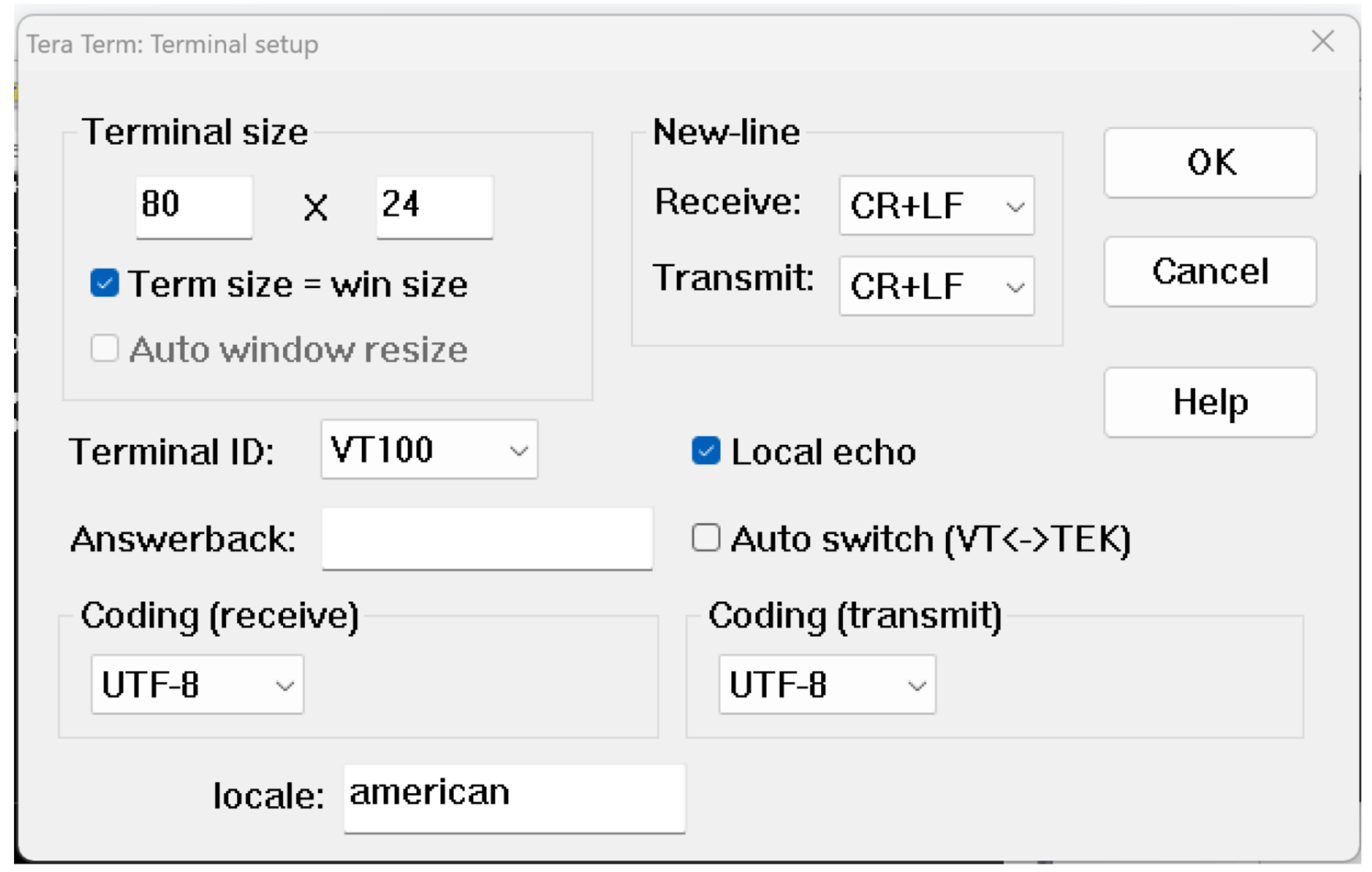
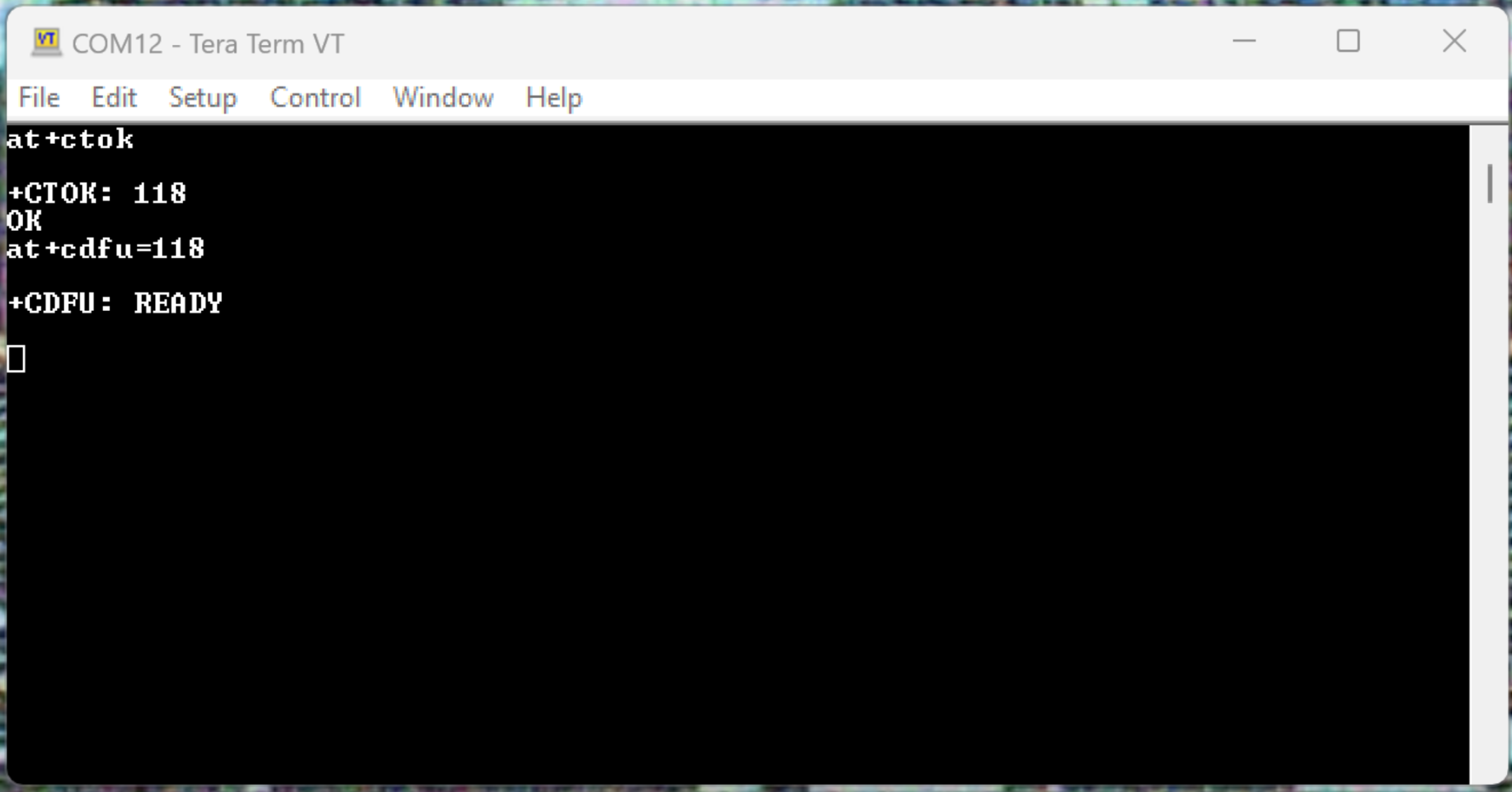
- Put the RockBLOCK Pro in "Kermit Receive" Mode:
Command:
AT+CTOK
Expected response:
+CTOK: <token number>
OK
Note that the token number will only be valid for 30s
Command:
AT+CDFU=<insert token number>
Expected Response:
+CDFU: READY
- Click File > Transfer > Kermit > Send ... Select the firmware file in the dialog.
The application firmware file must be named 'L4-App.new' (case-sensitive)
It is recommended to update the bootloader firmware first.
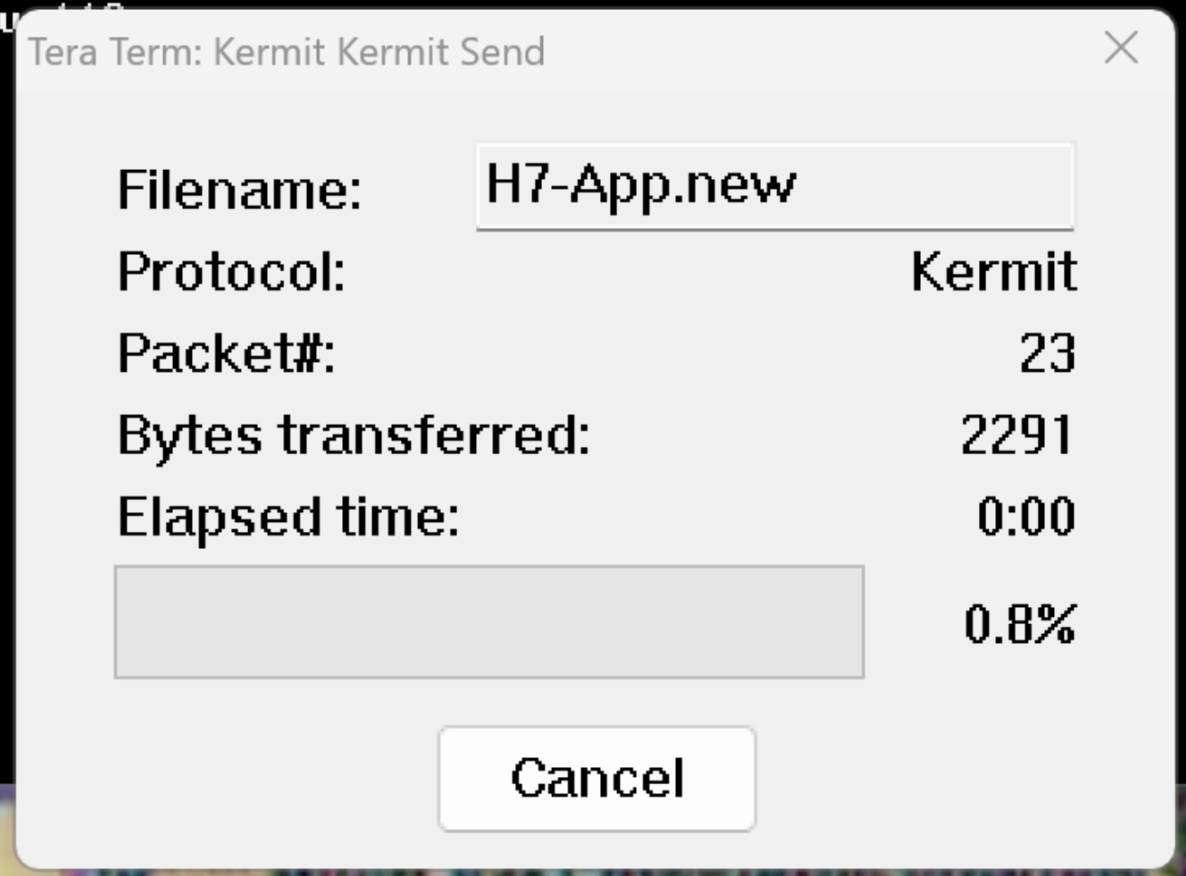
- Progress bar will reach 100% and the dialogue will close.
- The RockBLOCK Pro will automatically reboot on completion.
Serial port update using Linux
Linux
- Save Kermit script to "fw-update.kerm"
#!/usr/bin/kermit +
if < \v(argc) 4 {
    echo "Usage: \%0 <serial port> <baudrate> <*.new app file>"
    echo "eg. \%0 /dev/ttyUSB0 115200 L4-App.new"
    exit 1
}
assign SERIAL_PORT \%1
assign SERIAL_BAUD \%2
assign FILENAME \%3
# Set the communication parameters
set line \m(SERIAL_PORT)
set speed \m(SERIAL_BAUD)
set flow none
set parity none
set stop-bits 1
set carrier-watch off
set file names literal
set window-size 1
set receive packet-length 94
send /AS-NAME:L4-App.new /BINARY \m(FILENAME)
# Uncomment this for stats to be displayed at the end
# statistics /VERBOSE
close
exit
- Put the RockBLOCK Pro in "Kermit Receive" Mode:
Command:
AT+CTOK
Expected response:
+CTOK: <token number>
OK
Note that the token number will only be valid for 30s
Command:
AT+CDFU=<insert token number>
Expected Response:
+CDFU: READY
- Run the script by:
./fw-update.kerm /dev/ttyUSB0 115200 /<filepath>/<Firmware File>
- Progress bar will reach 100% and the dialogue will close.
- The RockBLOCK Pro will automatically reboot on completion.
Replace ttyUSB0 with your correct serial device name (run dmesg | grep tty to find)
Also replace baudrate and other parameters if required
Serial port update using Linux Mac OS X
Mac OS X
MacOS, including older versions of C-Kermit (v9) running on Linux require the following:
kermit -l /dev/tty.usbserial-FT4WLSEC -b 115200 -i -C "set carrier-watch off, set flow none, set parity none, set stop-bits 1, set file names literal, set window-size 1, set receive packet-length 94, send /AS-NAME:L4-App.new /BINARY L4-App-Test-0-0-0.new, close, exit"
Replace /dev/tty.usbserial-FT4WLSEC with your correct serial device name (run dmesg | grep tty to find)
Also replace baudrate and other parameters if required
Also replace L4-App-Test-0-0-0.new with the correct name of the file
Firmware and Config update Over the Air via Cloudloop Device Manager
Cloudloop Device Manager (CDM) allows remote management and troubleshooting of devices and uses Iridium Messaging Transport (IMT)
Any use of Cloudloop Device Manager will result in data usage
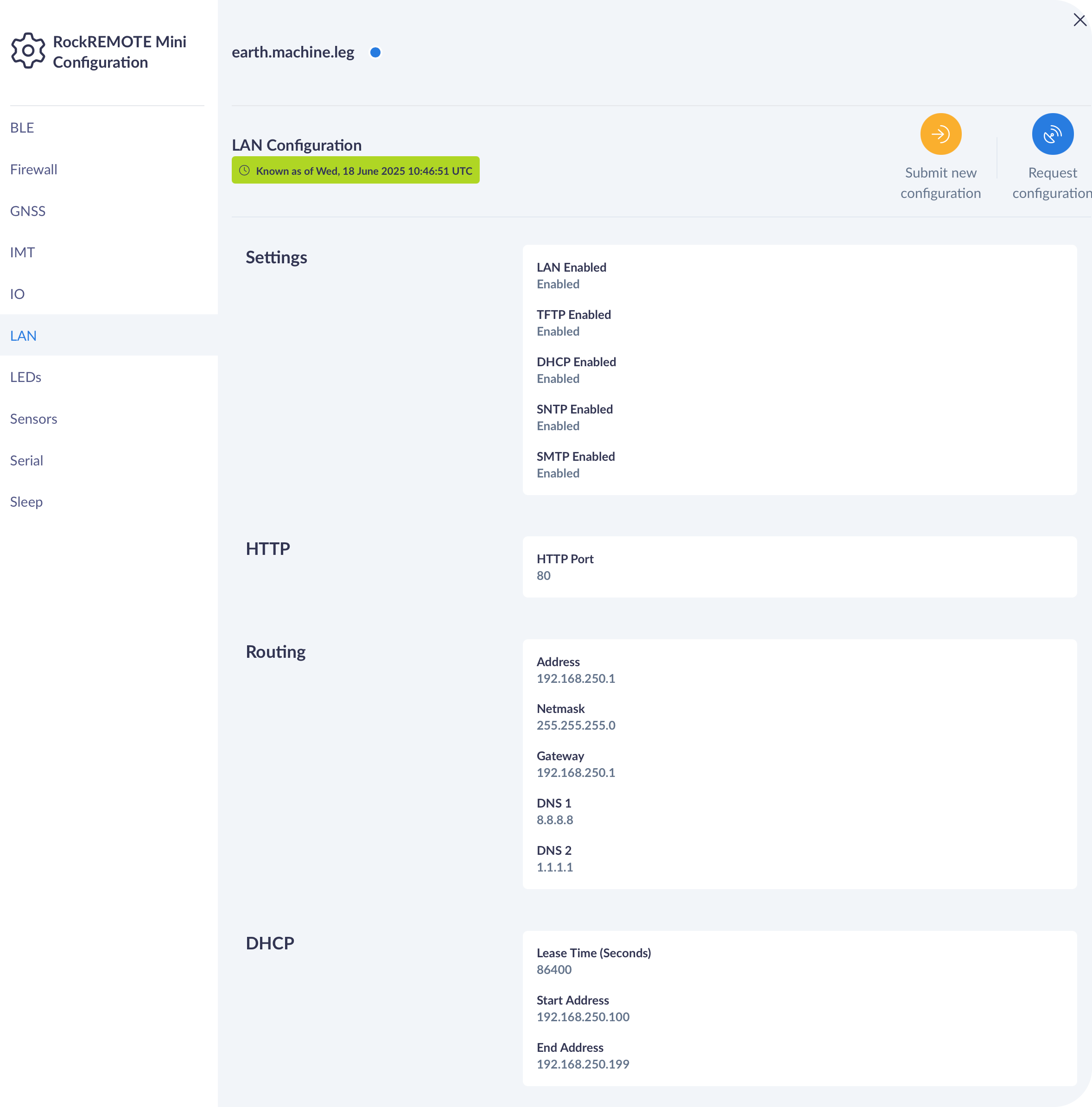
User Configuration update over IMT and CDM
User Configuration update over IMT and CDM
Optimising for lowest possible satellite data usage, the user configuration file is split by sections in CDM.
Each section can be individually requested, and updated.
Firmware update over IMT and CDM
Firmware update over IMT and CDM
CDM allows the upgrade and downgrade of Firmware with the option to check the current version, see the release notes of new versions and the estimated size of the new version.
From FWv0.17 each FW update is likely to also require an update to the Bootloader. The Bootloader MUST be downloaded
to the unit BEFORE the FW update, therefore when the FW update is requested from CDM it will begin by transferring the Bootloader,
this will trigger a re-boot once complete, after this re-boot the remaining files including the new FW will be transferred,
resulting in a final re-boot when all files will be installed simultaneously.
Startup Events to be turned on, if you've toggled them off - please make sure to turn them on first before attempting a firmware update.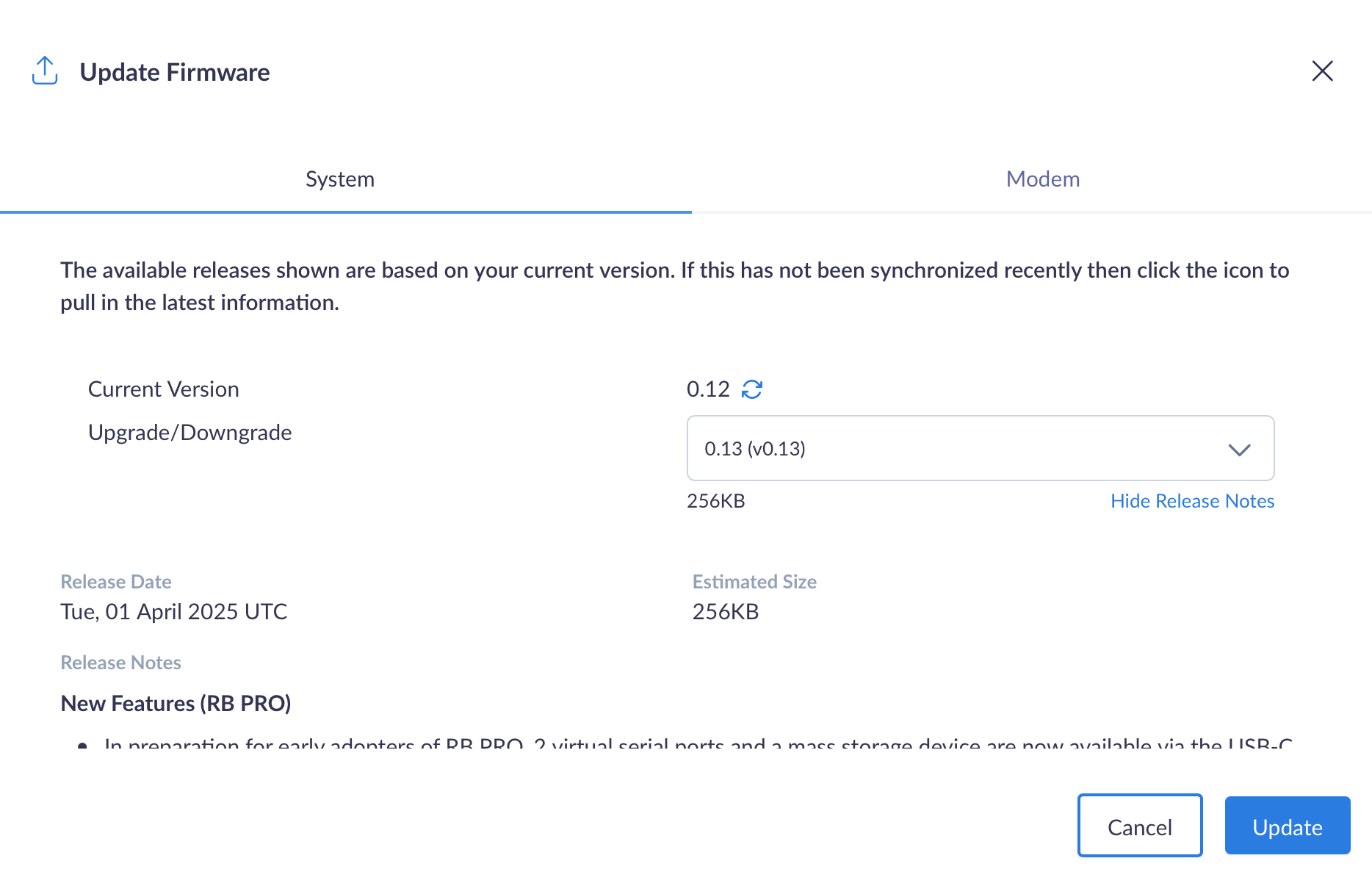
User Configuration via Bluetooth App
A subset of RockBLOCK PRO functionality can be configured and managed via the RockCONNECT IoT (From FW v0.15)