Firmware Update
Overview
To update the firmware on your RockBLOCK APNT module you will need to request the latest binary file from our support team and then use your chosen serial terminal application - the instructions on this page are written using 'minicom' connected via the USB-C port.
Step 1 - enter the bootloader menu
- Open your serial program and then connect your RockBLOCK APNT unit.
- It will power-on and cycle through two stages of the boot loader: BL1_1 and BL1_2
- During the BL1_2 stage, press the 'F2' key and you should see the following menu:
d: Download and deploy receiver application
r: Reboot
h: Print command help
BL1_2>
Step 2 - send firmware file to the module
You will now need to upload the firmware file (e.g. pnt-asic-c3.8.0.bin.enc) to the module. The following example is using YMODEM within minicom:
- choose option 'd' to start the download process
- select your file and upload to the unit:
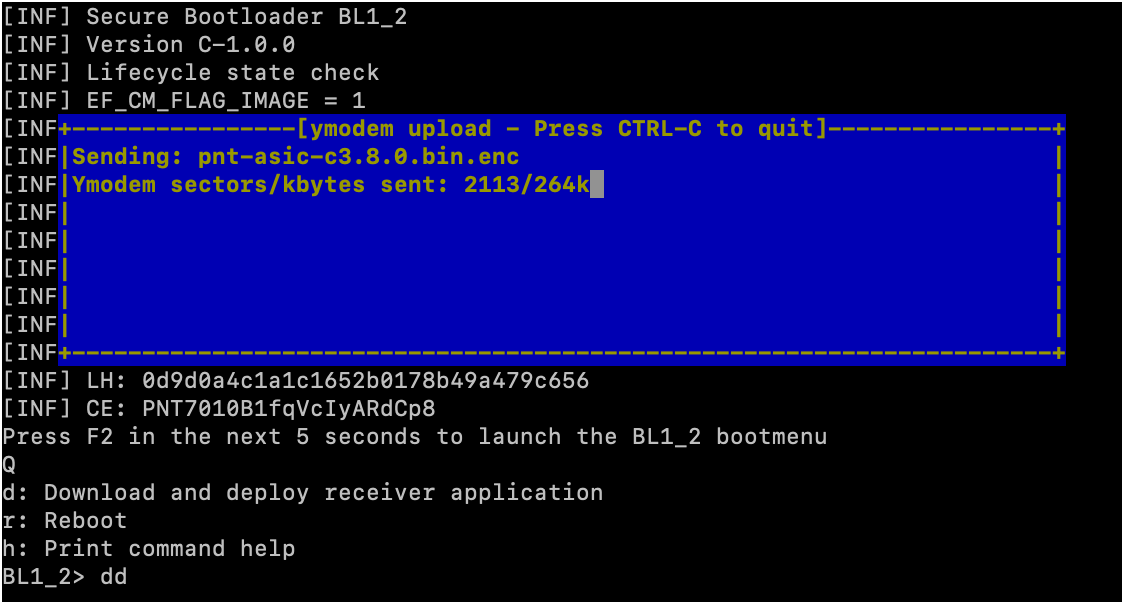
When the firmware upload has completed it will run some validation checks and store in memory, showing information such as the following:
[INF] Download and deploy BL3_3
[INF] Downloaded application type 2 for provisioning version C-1.0.0
[INF] Downloaded application version C-3.8.0
[INF] Decrypt BL3_3
[INF] BL3_3 reasonableness check
[INF] BL3_3 validation check
[INF] BL3_3 validation check success
[INF] Valid BL3_3 image. Deploying.
[INF] Erasing eMRAM
[INF] Copy BL3_3 to eMRAM
BL1_2>
Step 3 - reboot the module
Now that the unit has uploaded the firmware, you need to reset the device for the firmware to be applied:
d: Download and deploy receiver application
r: Reboot
h: Print command help
BL1_2> r
Once the unit has rebooted and started to stream its NMEA sentences, you can validate that the firmware has be applied by looking at field 12 of the $GSSYS sentence. Example of a unit updated to version 3.8.0:
$GSSYS,3,144,144,64,0x033,0x033,0,1502840827,0,2048,C3.8.0.43144,,,*15